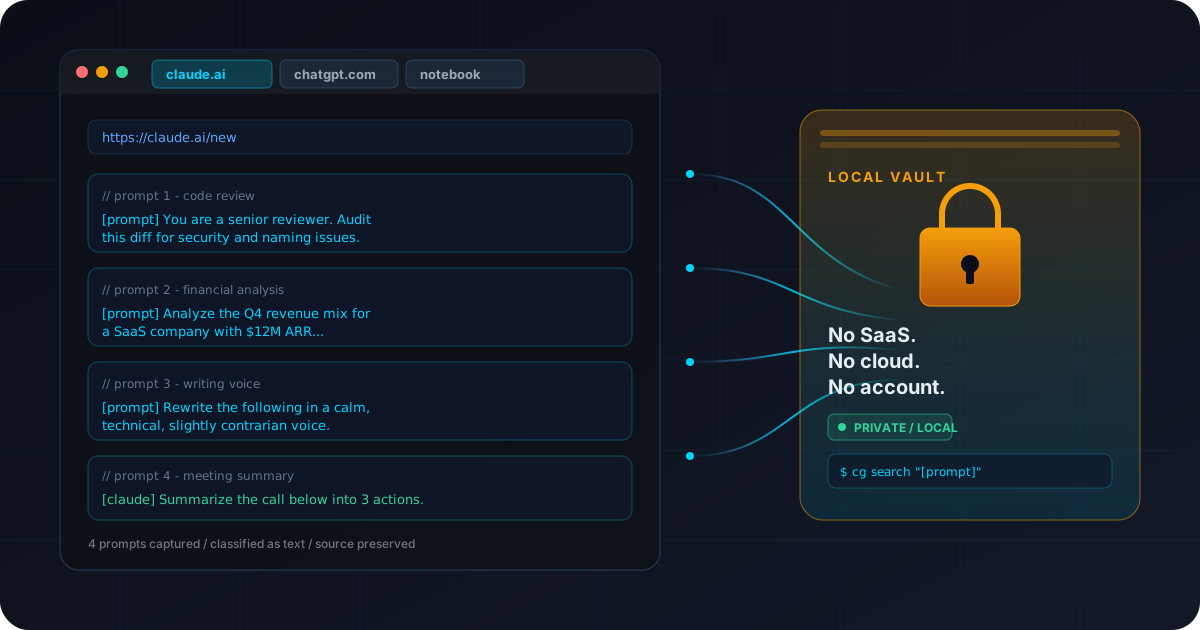
Save Your ChatGPT and Claude Prompts Privately in Chrome (No SaaS, No Cloud)
Anyone who lives inside ChatGPT or Claude eventually accumulates a folder, a Notes app, or a bloated Notion page full of half-remembered prompts. The reflex is to grab a SaaS prompt manager and pay $5–20/month for a tidy library. There is a quieter path. Your browser clipboard is already doing most of the work — and a Chrome extension can turn it into a private, searchable prompt library that never leaves your laptop.
Most regular ChatGPT or Claude users have 50+ reusable prompts within a few months — and almost no system to recall them.
SaaS sees everything
Cloud prompt managers store every NDA-tinged context paragraph and internal repo name on someone else's database.
The clipboard already saw it
Every prompt you paste into Claude has already passed through your browser clipboard. A capture layer turns it into a library.
100% local
Zero network requests, no account, no telemetry. The library lives in your Chrome profile, encrypted where it counts.
The prompt manager problem
Anybody who uses ChatGPT or Claude seriously runs into the same unflattering moment around month three. They want to reuse the prompt that produced a brilliant code review last Tuesday. They cannot find it. It is somewhere in a chat history that does not search well, or in a Notes app, or in a Slack message they sent themselves, or it is gone. The prompt that worked is the one they cannot retrieve.
This is not a hypothetical. Prompt engineers, AI writers, marketing teams, and ChatGPT power users all hit it. The collection grows fast — you draft a research prompt, a financial analysis prompt, a writing-voice prompt, a tone-rewrite prompt, a meeting-summary prompt — and within a few months you have fifty or more. None of the obvious places to keep them are good.
Apple Notes / generic notes apps
Free and right there, but search is awful, organization breaks down past twenty entries, and you end up with three notes called "prompt ideas" that do not link to each other.
Notion or a wiki
Better search, but a separate tab, a separate app, a separate context switch. By the time the page has loaded you have forgotten which prompt you were looking for.
SaaS prompt managers
PromptHub, Snack Prompt, AI Mind, and the long tail charge $5–20/month and store every prompt on their servers — including the proprietary context you wrote into it.
The SaaS option is the one most people land on, because the marketing is direct and the onboarding is slick. But the moment you stop and read what a prompt actually contains — company-specific framing, internal jargon, the name of the codebase you are reviewing, your client's industry — the cloud-storage default starts to feel like a problem rather than a feature. You are paying a monthly fee to make a copy of your most context-rich text live on a third-party machine.
Why local-first matters for prompts (more than for bookmarks)
It is fashionable to say everything should be local-first. For most apps the argument is mild — your bookmarks are not that sensitive, your read-later list barely matters. For prompts the calculus is different. Prompts are some of the most context-saturated text you write. They are short, dense, and almost always include either proprietary information, personal background, or both. A SaaS prompt manager sees all of it.
A few concrete examples make the surface area obvious. The financial analyst's "evaluate this acquisition" prompt names the actual target. The doctor's "summarize the patient timeline" prompt carries enough context that anyone on the storage side can guess the diagnosis. The engineer's "review this diff for our codebase conventions" prompt mentions internal repo names, naming patterns, and the company's stack. None of those are leaked by accident — they are leaked by paying for the convenience of a tidy cloud library.
Proprietary context bleeds into prompts
Anything that makes a prompt good tends to be the part you would not put in a public document. Industry jargon, codebase names, customer specifics, internal product launches — the signal that matters is also the signal you do not want indexed by a vendor.
NDA-covered details are easy to forget about
Most NDAs cover "any information disclosed in connection with the engagement," and a prompt that asks Claude to draft a memo about the engagement is exactly that. Pasting it into a SaaS prompt manager is a quiet contract violation that no one will notice until they do.
Personal context ends up in research prompts
Medical queries, legal questions, financial planning prompts — the more useful the answer, the more personal the input. A local-first library means the personal context is on your laptop and only your laptop.
Account-based access is a single point of failure
One leaked password on a prompt SaaS account exposes your entire library — every prompt, every iteration, every context paragraph — to whoever has the credentials. Local storage is not invulnerable, but the blast radius is your laptop, not a vendor's database.
The privacy framing for prompts is sharper than for general bookmarks because prompts are short, valuable, and personal in ways URLs rarely are. If you would not paste a particular sentence into a Slack channel that includes the vendor, do not paste it into the vendor's prompt manager.
The Chrome clipboard already does most of this — you just didn't see it that way
Here is the reframe. Every time you copy a prompt from ChatGPT, Claude, a colleague's Slack message, or your own notes — and every time you paste it into the model — the text passes through your browser's clipboard. The clipboard is already the universal pipe between every prompt source and every prompt destination. You did not build that infrastructure. Chrome did. It is just sitting there, doing the right thing, and being silently forgotten the moment you copy something else.
A clipboard manager with classification turns that pass-through into a permanent, searchable library. You do not need to learn a new app. You do not need a new account. You do not need to remember to "save this prompt to my prompt library" — the prompt is already going through the clipboard, so the manager just stops throwing it away.
The mental shift is the whole product. Your prompt library is already there. It is the history of every text item you have copied in the browser this week. The only thing missing is something that bothers to keep it.
That is what the ClipGate Chrome extension does. It listens for the standard browser copy event in any normal tab, captures the selection into a local store on your machine, and runs each item through a classifier that assigns one of thirteen content types — secret, error, url, path, json, command, sha, diff, sql, env, docker, ip, or plain text. Prompts do not match any of the structured patterns, so they land as text. That is exactly what you want — your prompt library is the text stream of your clipboard, classified, dated, and searchable.
There is no native prompt content type today. That is fine. The convention you reach for is something simpler: prefix the prompts you copy with [prompt] or [claude] when you draft them, and the search side becomes trivial. More on that in the retrieval section.
Setup in 60 seconds
Three steps, and your prompt library starts collecting on the next thing you copy.
Install the Chrome extension
Open the ClipGate listing on the Chrome Web Store, click Add to Chrome, accept the permissions prompt. Works in any Chromium browser — Chrome, Edge, Brave, Arc, Opera.
Pin the icon and pick a capture mode
Open the puzzle-piece extensions menu, find ClipGate, pin it. By default the extension is in auto mode — every browser copy is captured silently. If you want a tighter capture surface, switch to selective mode in the popup and use right-click Save to ClipGate or the Ctrl+Shift+S shortcut to save deliberately.
Copy your first prompt
Find a prompt you have used recently — in a Claude chat, a ChatGPT conversation, a Notes file. Select it, press Cmd-C or Ctrl-C, click the ClipGate icon. Your prompt is at the top of the list, classified as text, with the source URL and a relative timestamp attached.
Figure 1 — After a single capture, the popup shows the prompt preview, the source domain (claude.ai or chatgpt.com), the inferred type tag (text), and a Local only indicator. No account prompt, no cloud round-trip, no model API call.
That is the entire onboarding. The interesting part starts after the next twenty prompts you copy land in the same store, and you can suddenly retrieve any of them in a second.
The retrieval workflow
The library is only useful if getting a prompt back is faster than rewriting it. ClipGate's retrieval surface is small on purpose, with the assumption that you will use two or three commands routinely and forget the rest exists. The retrieval surface is shared between the browser popup and an optional command-line tool — you can stay entirely in the browser if you want to.
Browse recent prompts
List recent text items, which is where prompts land by default. Open the popup and filter by type, or run the same query from a terminal once the CLI is installed.
$ cg list --type text
# 14 text items
# 1. [prompt] You are a senior code reviewer...
# 2. [prompt] Rewrite the following in a calm voice...
# 3. [claude] Summarize the call below into 3 actions...
Search by content
Find a prompt by any keyword you remember. Combine the search with the user-side [prompt] convention to filter cleanly to AI prompts and skip everything else.
Send the most recent text item back to the system clipboard so you can paste it into a fresh Claude or ChatGPT tab. No mouse, no scrolling through a popup.
$ cg paste --to-clipboard
# wrote 1 item to clipboard
$ cg paste -t text
# stdout: [prompt] You are a senior code reviewer...
Open the picker
For visual selection, the popup shows the type-tagged history with previews. Click a row to copy it, click again to open the source URL it came from. Both behaviors stay inside the browser — no terminal required.
// In the popup:
// click row -> copy item to clipboard
// click src -> open source URL in new tab
// type tag -> filter list to that type
The user-side convention is doing real work. There is no native prompt type in ClipGate as of v0.1.4, but that is fine — typing [prompt] at the start of the prompts you draft is a habit that takes a week to become invisible, and it makes cg search "[prompt]" a precise filter from day one. Future versions may register custom types directly; until then, the prefix convention is the workable answer that needs no settings page.
If you mostly use prompts inside the browser and never want a terminal in the loop, the popup alone is enough. The CLI examples above are for power users who want scriptable retrieval and pipelines into other tools. They are optional, not required.
Sharing prompts without going to the cloud
The honest objection to a local prompt library is sharing. Sometimes you do want to send a teammate a clean bundle of the five prompts you wrote last week. The good news is that "share" does not have to mean "upload to a vendor and grant them access." It can mean "produce a plain-text block, paste it into the channel you already use."
That is what cg pack does. With the optional CLI installed, a single command bundles a recent slice of your text items into one Markdown block with type tags and source URLs preserved. Paste that block into Slack, email, a shared Notion doc, the Claude chat where you are collaborating, or any tool the recipient already trusts. No vendor lock-in. No proprietary format. Plain text in, plain text out.
$ cg pack --last 5m
# 4 text items
# sources preserved, secrets redacted
---
[prompt] You are a senior reviewer. Audit this diff for...
src: claude.ai
[prompt] Rewrite the following in a calm, technical voice...
src: chatgpt.com
[claude] Summarize the call below into 3 actions...
src: notes
Two privacy details matter here. First, cg pack redacts anything classified as secret before emitting the bundle, so a prompt you copied that contained a credential by accident is not leaked into a chat with your teammate. Second, the bundle never touches a network on its own — it goes to stdout, you paste it where you want, and your network only knows about the Slack message you actually sent.
For collaboration that is heavier than a paste — version control over prompts, multi-author libraries, public sharing — a shared Git repo of .md files works surprisingly well, and cg pack -f markdown emits content the repo can consume directly. The local-first shape does not block collaboration. It just keeps the storage choice yours instead of a vendor's.
What you give up vs SaaS prompt managers
This is the honest tradeoffs section. SaaS prompt managers genuinely solve a few problems that a local clipboard library does not. Pretending otherwise is bad advice.
Feature
SaaS prompt manager
Local clipboard library
Team-shared prompt libraries
Built-in, with permissions and roles.
Manual share via cg pack bundles or a shared Git repo.
Version history UI
Per-prompt diffs, rollback, revisions.
Implicit chronological history; no per-prompt versioning UI.
AI-suggested improvements
Inline rewrite suggestions, A/B testing.
Out of scope.
Public prompt marketplaces
Browse, fork, remix community prompts.
Not available — discovery happens elsewhere.
Storage location
Vendor cloud.
Your machine, your Chrome profile.
Monthly cost
$5–20/month.
Free.
Account leakage risk
One credential away from a full-library exposure.
Limited to the laptop. Disk encryption helps; account leak does nothing.
The honest read is straightforward. If you are running a marketing team that shares 200 prompts across writers and editors, with formal review cycles, a SaaS prompt manager probably still wins. The collaboration affordances are real and not cheap to replicate locally. If you mostly use prompts solo, your prompts contain context you would rather not hand to a third party, and you want one fewer subscription on the credit card statement, the clipboard reframe is enough on its own.
For the privacy-curious version of the same comparison, the companion piece on what your macOS clipboard actually leaks covers the underlying surface area. The framing there is general; this post is the AI-prompt-specific application.
Frequently asked questions
Will my prompts ever leave my computer?
No. ClipGate makes zero outbound network requests. Every prompt you copy is stored in the browser's local extension storage on your machine. There is no cloud sync, no telemetry, no account, no analytics. The only time a prompt reaches a model is when you explicitly paste it into Claude, ChatGPT, or another tool — and even then, only the model you chose sees it, not ClipGate.
Can I share prompts with my team?
Not through a shared library — that is the trade-off of staying local. What you can do is bundle a handful of recent prompts into a single Markdown block with cg pack and paste that into Slack, email, a shared doc, or a Notion page your team already uses. The bundle is plain text, so any teammate can copy it back into their own ClipGate or save it however they like. There is no proprietary format and no vendor lock-in.
What if I copy a password by accident?
ClipGate detects credential-shaped values at capture, classifies them as the secret type instead of text, encrypts them at rest with AES-256, masks them in the popup, and auto-expires them on a configurable timer. Password input fields are excluded by Chrome's permission model and never reach the extension at all. When you run cg pack to bundle prompts, secrets are redacted from the output before anything is emitted.
Does this work for ChatGPT specifically or any AI tool?
Any AI tool. The capture layer is the browser clipboard, not a particular product integration. Anything you copy from claude.ai, chatgpt.com, Gemini, Mistral's chat, Perplexity, or a self-hosted model is treated identically. Same for prompts you draft in a Notes tab and copy into the model. The library is tool-agnostic by design.
How is this different from PromptHub or Snack Prompt?
PromptHub, Snack Prompt, AI Mind, and similar tools are SaaS products that store your prompts in their cloud, charge $5–20/month, and offer team collaboration, public marketplaces, and version history. ClipGate stores prompts locally, costs nothing, and offers none of that collaboration surface. If you mostly use prompts solo and your prompts contain context you would rather not hand to a third party, the local approach is simpler. If team collab and shared libraries are essential, SaaS still wins.
Can I export my prompts to another tool later?
cg list -f json emits the entire history as plain JSON. cg pack -f markdown emits a Markdown block. Both are open formats — copy them into Notion, Obsidian, a Git repo, or another prompt tool with no migration script. Because the storage is local and the export formats are standard, you keep your data even if you stop using ClipGate tomorrow.
Install ClipGate and turn your clipboard into a prompt library
Install the Chrome extension before your next reading-and-prompting session. Pin the icon, and the next twenty prompts you copy land in a local, classified, searchable store instead of vanishing one Cmd-C later.
Chrome extension (start here)
One click from the Chrome Web Store. Auto-capture, right-click Save to ClipGate, and Ctrl+Shift+S all work the moment it installs.
Adds cg list, cg search, cg paste, and cg pack for terminal-side retrieval and team bundles. Optional but useful.
curl -fsSL https://clipgate.github.io/install.sh | sh
PyPI / Homebrew
If pip or brew already manages your toolchain, install the CLI the same way you install everything else.
pip install clipgate
brew install clipgate/tap/cg
Stop renting your prompt library.
One Chrome extension. Every prompt you copy, classified and stored locally. No SaaS subscription, no cloud database, no account that can leak. Read the docs if you want the full configuration surface, or learn more about the project.