How to Auto-Save Every Snippet You Copy in Chrome — and Pipe It to Claude or ChatGPT
Researching across thirty tabs, copying fragments into a scratchpad, then watching half of them vanish by Friday is not a memory problem. It is a tooling problem. Here is how to put a quiet capture layer between your browser and your AI assistant — so the snippets you grabbed at 10am are still there at 4pm, bundled, classified, and ready to send.
You promise yourself you will paste it somewhere safer later. Later never comes. By Friday the tab is closed and the snippet is gone.
Auto-capture is invisible
Install once and forget. Every Cmd-C / Ctrl-C in Chrome is captured silently into a typed local store you can browse anytime.
One bundle, all snippets
When the question for the model arrives, ship the last thirty minutes of research as one block instead of pasting six fragments by hand.
100% local
Zero network requests. No account, no telemetry, no cloud. Your research stays on your laptop until you choose to send it.
The "I'll save it later" lie
You open a doc page and copy the relevant paragraph. Open another tab, copy a code sample. Switch to a Stack Overflow answer, copy a snippet. Land on a GitHub README, copy the config block. By the time you have what you need, the clipboard has been overwritten ten times and the only thing you still have is whatever you copied last.
The story you tell yourself is that you are about to paste everything into a scratchpad. The reality is the next idea is already pulling and the snippet gets one second of clipboard life before the next arrives. By Friday afternoon, half of what you needed is gone and the other half lives in a tab group you cannot find.
Stripe webhook research
Eight tabs across Stripe docs, the Node SDK README, and a Stack Overflow answer on signature verification. The two lines that solved it were copied at minute three and lost by minute fifteen.
Tailwind class hunting
You copy the right utility chain for a card layout, switch to the playground, and by the time you open your editor the copy has been wiped by a button label.
Debugging a third-party SDK
The error message, the GitHub issue thread, and the workaround snippet were all copied within four minutes. None are reachable at the next standup.
The cost is not the snippets. It is the rebuild — reopening tabs you already closed, re-running the same query, re-reading the same paragraph twice. Most "research is hard" days are actually research-twice days, and the second pass is the one that burns the afternoon.
What auto-capture actually means
Most Chrome users assume clipboard managers are a macOS dock thing — a hotkey that pops a list of recent copies. The browser, the assumption goes, has nothing to do with it. That assumption is out of date.
A modern Chrome extension can listen for the standard copy event in any normal tab, capture the selection, and store it locally — silently, no popup, no extra keystroke. That is what the ClipGate browser extension does. From the moment it installs, every Cmd-C / Ctrl-C in a regular tab becomes a stored, classified entry. Three capture modes fit different research styles.
Auto mode (default)
Every text selection you copy is saved to the local store. You change nothing about how you read. The badge ticks up by one each time.
Right-click "Save to ClipGate"
Highlight a selection on any page, right-click, choose Save to ClipGate. A deliberate save for when auto-capture is off or you want to grab something without overwriting your clipboard.
The Ctrl+Shift+S shortcut
Same outcome as the right-click entry, faster. Select text, hit the shortcut, the snippet lands with source URL and content-type tag attached.
Auto-capture is also worth turning off sometimes. During long form fills, onboarding flows, or screen shares, selective mode keeps the store clean. Switch modes from a dropdown in the popup.
Equally important is what auto-capture does not grab. Password input fields are excluded by Chrome's permission model. Incognito tabs are out of scope by default. And if a captured value looks like a credential, it is detected on the way in, encrypted with AES-256-GCM, masked in the UI, and auto-expired on a configurable timer.
Install the extension in 60 seconds
Sixty seconds, three steps, then you forget it exists until the first time it saves your afternoon.
Open the Chrome Web Store listing
Visit the ClipGate extension page, click Add to Chrome, confirm the permissions prompt. Works in any Chromium browser — Chrome, Edge, Brave, Arc.
Pin the icon to the toolbar
Open the puzzle-piece extensions menu, find ClipGate, pin it. The badge ticks up every time a new snippet is captured.
Trigger your first capture
Select any sentence on this page, press Cmd-C or Ctrl-C, click the icon. Your selection is at the top of the list with source URL and type tag attached.
Figure 1 — After a single capture, the popup shows the snippet preview, source domain, relative timestamp, and a Local only indicator. No account prompt, no cloud round-trip.
Once the first capture works, you are done thinking about the install. The store stays current as you read, and the next time you wonder "did I copy that earlier?" the answer is one click away.
The research-to-AI loop, end to end
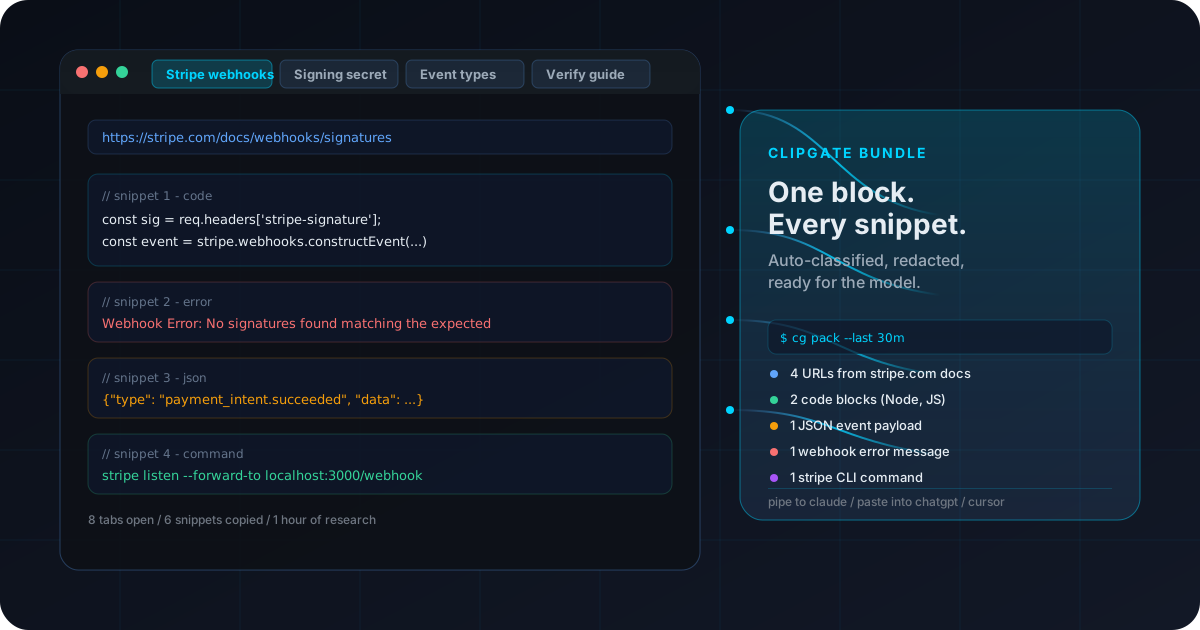
You are about to write a Stripe webhook handler. You spend an hour reading: eight tabs across the webhook docs, the signature verification guide, the SDK reference, two GitHub examples, a Stack Overflow thread on idempotency. Across that hour you copy six snippets — a code block, a JSON payload, an error message, a Stripe CLI command, a config line, and one URL.
Without auto-capture, you arrive at your editor with one of those six on the clipboard and a foggy memory of the rest. With it, all six are sitting in your local store, tagged by content type and source URL.
Option A — Browser only
Open the popup, multi-select the six snippets, copy as one bundled block. Paste into a new conversation at claude.ai or chatgpt.com. The model has the verbatim docs context with source URLs intact.
// Paste from the popup:
[code] const sig = req.headers['stripe-signature'];
stripe.webhooks.constructEvent(body, sig, secret);
// src: stripe.com/docs/webhooks/signatures
[json] {"type":"payment_intent.succeeded","data":{...}}
// src: stripe.com/docs/api/events/types
[error] Webhook Error: No signatures found matching...
// src: github.com/stripe/stripe-node/issues/1234
Option B — Terminal bundle
If the ClipGate CLI is installed, browser captures and terminal captures share one local store. A single command bundles the last thirty minutes into a Markdown block with classified types and redacted secrets.
The win is not that the model is smarter. It is that the model finally sees the same context you saw. Without the bundle, you paraphrase and the model fills gaps from training. With it, the assistant reads from the exact docs and the exact error you read at minute four. The handler it writes references the right event types, the right header name, and the idempotency pattern the docs prescribe — because that is the corpus you showed it.
The pattern generalises beyond Stripe. OAuth scopes, infrastructure rollouts, library upgrades — anything where the answer lives across many sources and you need the model to read what you read. Auto-capture turns a reading session into a single block, no extra effort.
The right-click escape hatch
Auto mode is the default because most copies during research are worth keeping. But some sessions are not — long form fills, screen shares, onboarding where you paste personal information. For those, switch capture mode to selective from the popup. Ordinary copies stop landing in the store. To save deliberately, you have two paths.
Right-click → Save to ClipGate
Highlight, right-click, choose Save to ClipGate. The selection lands with page URL and an inferred type tag — code, JSON, URL, error, or plain text. Change the tag from the popup if inference picked the wrong shape.
Press Ctrl+Shift+S
Same outcome, no mouse. Works in both modes, so it is also a good "definitely keep this" tap inside auto mode.
The split matches how research feels. Reading mode is wide and forgiving — capture everything, prune later. Writing mode is narrow and deliberate — only the snippet you are about to use. Switching the dropdown is one click.
Privacy: what's stored, what stays on your machine
The fast version: nothing leaves your laptop unless you explicitly send it. The longer version is worth a few sentences.
Storage is local to your browser profile
Snippets live in the extension's local storage on disk. They are not synced to a Chrome cloud account, not shipped to any backend, not visible to other extensions. Clearing your profile, or uninstalling, clears the store.
Zero network requests for capture or retrieval
No telemetry beacon, no error reporting endpoint, no analytics ping. The popup, the badge, and the right-click entry all run on local code only.
Secrets are encrypted and auto-expired
Anything that looks like a token, key, or credential is detected at capture, encrypted at rest with AES-256-GCM, and auto-expired on a configurable timer (default two hours, max two days). The popup does not surface secret values in the clear.
Incognito and password fields are excluded
Chrome's permission model keeps incognito windows out by default. Password input fields never reach the extension. The text you most want kept out of any store stays out without you thinking about it.
Outbound only happens when you choose
Research touches a model the moment you paste into Claude or ChatGPT, or pipe a CLI bundle to the assistant. Until then, every snippet stays local. You choose the model, the moment, and the payload.
If your team has stricter requirements — air-gapped machines, no browser extensions — the CLI alone covers the terminal-side capture story. Pick whichever fits your threat model.
When to use the CLI vs the extension (and when both)
The two surfaces solve overlapping but distinct problems. The extension captures from the browser, where most reading happens. The CLI captures from the terminal, where most building happens, and adds a powerful retrieval and bundling layer on top. Most readers want both. Some only need one.
If your day looks like…
Start with
Why
Reading docs, then asking a model
Extension
Every browser copy is captured, classified, and stored. The popup is enough to assemble a bundle for Claude or ChatGPT.
Heavy terminal work, occasional browser
CLI first, extension second
The CLI captures from the local clipboard and gives you cg list, cg last, and cg pack for retrieval and bundling.
Cross-surface research that ends in code
Both
Browser snippets and terminal snippets land in the same logical session. cg pack --last 30m bundles them all in one shot.
If you are torn, install the extension first. Sixty seconds, zero friction after, and the next research session tells you whether you also want the CLI. Most readers add the CLI within a week — the moment you want to pipe a bundle directly into claude on the terminal is when the second half of the workflow clicks.
Can a Chrome extension really auto-save everything I copy?
Yes. ClipGate listens for the standard browser copy event and captures into a local store the moment your selection lands on the clipboard. No polling, no remote server, no desktop app dependency.
Will it capture passwords or incognito content?
No. Password input fields are excluded by Chrome's permission model, and incognito windows are out of scope by default. Credentials that do appear are detected, encrypted with AES-256, masked, and auto-expired on a timer.
How do I get my snippets into Claude or ChatGPT?
Browser-only: open the popup, multi-select snippets, copy as one block, paste into the model. With the CLI: run cg pack --last 30m to emit a single Markdown bundle with URLs and classified types, ready to pipe into claude or paste into chatgpt.com.
Does anything leave my machine?
No. Zero outbound network requests. Snippets are stored locally, secrets are encrypted at rest, and there is no cloud sync, no telemetry, no account. Anything that reaches a model goes there because you explicitly pasted or piped it.
What if I don't want every copy captured?
Switch to selective mode. Auto-capture is off, and snippets save only when you right-click a selection or press Ctrl+Shift+S.
Will it work in Edge, Brave, or Arc?
Yes. Any Chromium-based browser supports the same binary, with identical auto-capture, right-click entry, and Ctrl+Shift+S shortcut.
Install ClipGate and stop losing research
Install the extension before your next reading session. Pin the icon, and let the next thirty minutes of research land in a real store instead of a single overwritten clipboard slot.
Chrome extension (start here)
One click from the Chrome Web Store. Auto-capture, right-click save, and Ctrl+Shift+S work the moment it installs.
Optional but useful. Adds cg pack --last 30m and pipes straight into the claude CLI.
curl -fsSL https://clipgate.github.io/install.sh | sh
PyPI / Homebrew
If your toolchain already runs through pip or brew, install the CLI the same way you install everything else.
pip install clipgate
brew install clipgate/tap/cg
Stop pasting six fragments by hand.
One Chrome extension. Every snippet you copy, classified and saved locally. One bundle for Claude, ChatGPT, or Cursor when you are ready to ask the question.