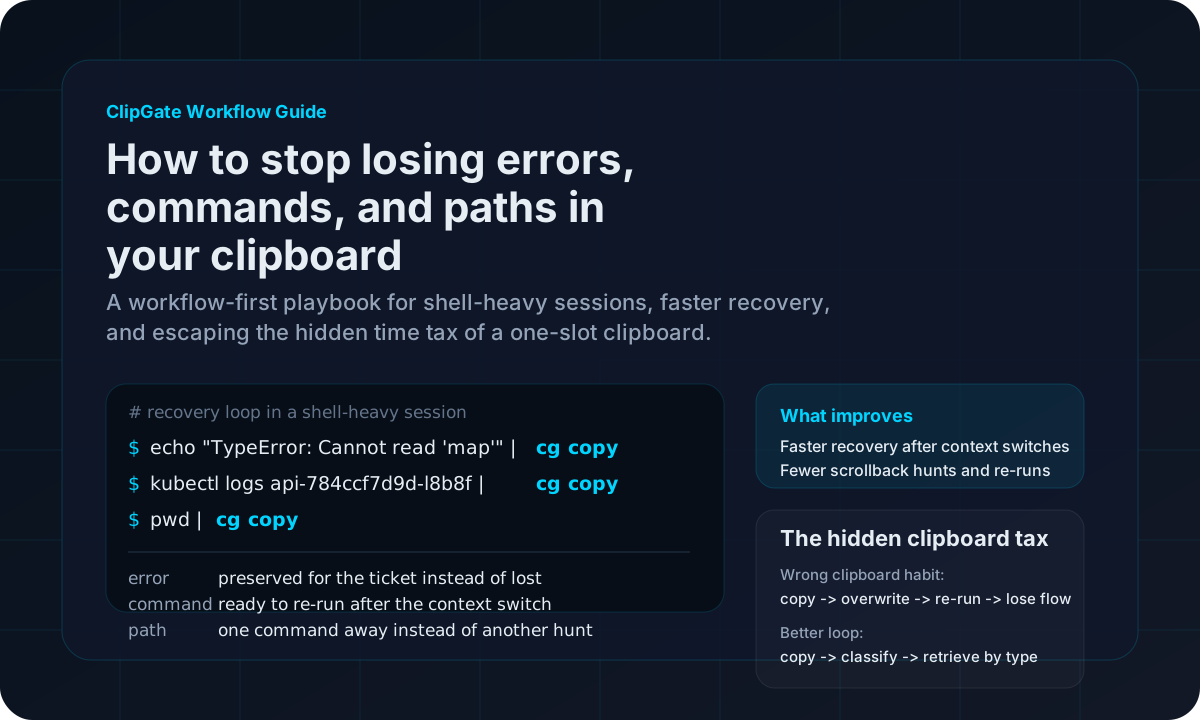
The clipboard habit that quietly burns time every day
Count the number of times a day you re-run a command you just ran, re-open a file whose path you just saw, or re-produce an error you were about to paste into a ticket. For most developers, the answer is "enough that I stopped noticing."
That friction is not because your memory is bad. It is because the system clipboard is a single global variable with exactly one slot. You copy a stack trace. Seconds later you copy a file path to open in your editor. The stack trace is gone. By the time you need it for the bug report, it is four commands deep in scrollback and the terminal has already rolled past it.
The real cost is not the typing. It is the context switch. You stop solving the problem and start reconstructing the thing you had ten seconds ago. Do that twenty times a day and your flow state never lasts more than ninety seconds.
That is why the wrong clipboard habit quietly burns time. It does not fail loudly. It fails as a string of tiny re-runs, scrollback hunts, and "wait, what was that path?" moments that never show up on a dashboard but still erode the session.
Why errors, commands, and paths keep vanishing
Three structural reasons, one after the other, each one fixable.
Single-slot clipboard
The OS clipboard holds exactly one value. Every copy overwrites the previous one. There is no "undo" on the buffer.
No classification
Even a clipboard history treats everything as an untyped string. Errors and commands share the same flat list.
Scrollback churn
Busy sessions scroll faster than you can grep. By the time you look for it, the line you wanted is gone.
Cross-window copying
You copy from the browser, paste in the terminal, copy from the terminal, paste in Slack. Nothing tracks the chain.
Any one of these is fixable in isolation. What makes it feel hopeless is that they compound. The faster you work, the more valuable the lost context becomes and the harder it is to recover.
The three moments you actually need them back
Not all lost clipboard items matter equally. Most vanish and never get missed. The painful ones cluster into three specific moments, and if your tooling covers those three you have solved most of the problem.
1. Writing a bug report or ticket
You need the exact error message, the exact command, and the exact path. Paraphrasing is how "cannot reproduce" happens. Retrieval here has to be verbatim, not approximate.
2. Replying to a teammate mid-context-switch
"What was the URL for staging?" "Which pod did you restart?" You knew sixty seconds ago, before you pivoted into Slack. Retrieval here has to be one shortcut, not five.
3. Re-running a step after a detour
You paused the task to fix something else, came back, and the chain is broken. Retrieval here has to include the command structure, not just the last raw string you copied.
If the clipboard covers these three moments, the rest of the friction falls away. Everything else is either already in shell history, already in scrollback, or unimportant enough that you never ask for it.
The "thirty-minute" rule
Most developer clipboard recoveries are recent. You want the thing from two minutes ago, or five, or fifteen. Rarely from two days ago.
Infinite retention feels thorough, but it produces a pile of old values nobody searches. The better default is a short horizon — thirty minutes for casual work, a few hours during active debugging — where retrieval is almost always "the last thing in this category" or "the thing from right before I alt-tabbed."
Short retention is not a limitation, it is a noise filter. The retrieval surface gets faster as the haystack gets smaller.
In practice this means: prioritise the last N items, make older items reachable but not surfaced, and never force the user to prune anything. Age it out automatically.
Classify by shape, not by source
Here is the single largest upgrade you can make to a clipboard workflow: classify every copied item by its shape, not just by the app it came from.
Errors, commands, paths, URLs, JSON, YAML, diffs, stack traces, and secrets are all shaped differently. A workflow-aware clipboard can look at a value the moment it lands and decide which bucket it belongs in. Retrieval then becomes "give me the last error" instead of "scroll through a flat list and guess."
| Category |
Shape clue |
Typical retrieval query |
| Command |
Starts with a binary name, has flags, ends with newline. |
"The kubectl command I ran right before the pod crashed." |
| Error / stack trace |
Multi-line block, contains "Error", "Exception", "traceback", "panic". |
"The TypeError I need to paste into the ticket." |
| Path |
Starts with /, ~, ./, or a Windows drive letter. |
"The log file I just tail -f'd." |
| URL |
Starts with http, contains a host, often has a path. |
"The staging dashboard I opened five minutes ago." |
| JSON blob |
Balanced braces, quoted keys, valid parse. |
"The response body from the last API call." |
| Diff or patch |
Lines starting with +, -, @@, diff --git. |
"The diff I was about to attach to the PR comment." |
| Secret |
High-entropy token, known prefixes (ghp_, sk-, etc.). |
Quarantined — never shown in the default list. |
Once items are classified at capture time, retrieval queries become natural. "Last error" is a real thing the tool can answer. "Last path" is a real thing. "Last JSON blob" is a real thing. And when you paste, you are pasting from a known category instead of a single overwritten slot.
If you want the broader buying framework behind this idea, the 2026 developer clipboard guide lays out how to evaluate local-first, terminal-friendly tools without getting distracted by generic history features.
Make the terminal the retrieval surface
If the clipboard lives in the terminal — because most of the valuable items came from the terminal — the retrieval surface should live there too. Not a browser popup, not a menu bar dropdown, not a modal window you have to focus. A one-line command that lists, filters, and returns what you need.
List without leaving the shell
Show the last N items with their classification. One look and you know whether what you want is still there.
$ cg list
1 command kubectl rollout restart deploy api
2 error TypeError: Cannot read 'map' of undefined
3 path /var/log/api/2026-04-08.log
4 url https://staging.example.com/dashboard
5 json {"status":"error","code":503,"retry":true}
Filter by category
Retrieval becomes a type query. "Give me the last error" is now a real command, not a scroll-and-guess.
$ cg last error
TypeError: Cannot read 'map' of undefined
at handleRequest (/api/routes/users.js:42:18)
at async Layer.handle (/node_modules/express/...)
Paste the right thing, not the latest thing
Pick by index or by type. The single global slot is no longer the only way to get something out.
$ cg paste 3
/var/log/api/2026-04-08.log
$ cg paste --type command
kubectl rollout restart deploy api
Pipe straight into the next step
Retrieval should be composable with everything else the terminal already does. Pipes, not popups.
$ cg last path | xargs tail -f
$ cg last error | pbcopy && gh issue create --web
The surface does not need to be fancy. It needs to be fast, composable, and always one keystroke from your current prompt. A clipboard retrieval tool that takes five seconds to open is indistinguishable from no clipboard at all.
Build a faster recovery loop in shell-heavy sessions
Once you accept that context loss is a workflow problem, the fix becomes simple: shorten the gap between "I need that thing back" and "I have it." The recovery loop should be muscle-memory simple.
Copy normally while you work
Do not add a new habit. Keep using the clipboard the way you already do across your terminal, browser, editor, and issue tracker.
List the last typed items when the chain breaks
When you lose the thread, reach for a typed recent list first instead of scrollback. You want visibility into the last few copied commands, errors, and paths immediately.
Retrieve by category, not by guesswork
Ask for the last error, the last path, or the last command. One category query is faster than scanning a mixed list of unrelated strings.
Bundle what matters before the next context switch
If you need to file a ticket or hand work to a teammate, grab the last few relevant items while the shape is still obvious. That is the point where minutes are saved.
Recover the last error fast
Useful when you need to move from the terminal into a bug report, PR comment, or AI assistant without recreating the failure.
$ cg last error
TypeError: Cannot read 'map' of undefined
at handleRequest (/api/routes/users.js:42:18)
at async Layer.handle (/node_modules/express/...)
Bundle the last few debugging artifacts
Useful when the real task is not recalling one string, but keeping the command, error, and path together as a reusable packet of context.
$ cg pack --type error --n 3
# 1 error
# 1 command
# 1 path
TypeError: Cannot read 'map' of undefined
kubectl logs api-784ccf7d9d-l8b8f
/var/log/api/2026-04-13.log
The workflow win is not "better clipboard history." It is faster recovery. When the next interruption hits, you want the error, command, or path back in one move instead of a three-minute reconstruction.
What a workflow-aware clipboard actually does
Putting the pieces together, a clipboard tool that fixes the "losing errors, commands, and paths" problem looks like this:
Captures every copy automatically
Nothing to remember, nothing to trigger. The tool watches the clipboard, stores each new value, and moves on. Your existing Cmd-C / Ctrl-C stays unchanged.
Classifies at capture time
The moment an item lands, the tool looks at its shape and tags it: command, error, path, URL, JSON, diff, secret, plain text. Classification is cheap and happens before anything else.
Stores a short, typed history
Recent items, grouped by category. Not an infinite plaintext log, not a scroll-forever database. Small enough to search instantly, big enough to cover the three moments that actually matter.
Exposes retrieval as a shell command
The interface lives where you already are. list, last, paste, search. No window switching, no context cost.
Keeps secrets out of the default view
Anything that looks like a token, key, or credential gets quarantined into a separate, encrypted vault — so reflex pastes never leak it into chat and the default list stays clean.
Stays entirely local
No sync, no account, no cloud round-trip. The clipboard should work the same on a plane as on a LAN. The smallest threat model is always "it never left your machine."
Where ClipGate fits
ClipGate is the terminal-native clipboard that implements exactly the workflow above. Every copy is automatically captured, classified by shape, stored in a local encrypted store, and available from any shell with one command. Secrets live in a separate vault so they never end up in the default history. Nothing is synced anywhere.
Shape-based classification out of the box
Commands, errors, paths, URLs, JSON, diffs, and secrets are identified at capture time so retrieval queries feel natural.
One-character shell commands
cg list, cg last error, cg paste --type path. The whole retrieval surface is composable with the rest of your shell.
Short horizon, fast search
Recent history is prioritised. The tool optimises for "the thing from two minutes ago" because that is what you actually need.
Local, encrypted, no account
Nothing is shipped anywhere. The store is encrypted at rest. No telemetry, no sign-up, no cloud mode to turn off.
Browser companion when you need it
The optional extension pipes browser captures into the same store, so the JSON you grabbed from a cloud console is reachable from your shell a second later.
For the command-level walkthrough, jump into the docs quick reference. If your bigger concern is accidental secret exposure instead of lost workflow context, the companion post on what to do after pasting a password or API key goes deeper on recovery and prevention.
The shortest version of the pitch: your clipboard should remember the things your terminal forgets. ClipGate is what that looks like as a tool you run every day.
Frequently asked questions
Why do I keep losing errors, commands, and file paths in my terminal?
Because the system clipboard is a single, volatile slot. Every time you copy something new, the previous value is gone. In a shell-heavy session you overwrite it dozens of times an hour, and any context you needed for debugging, a bug report, or a handoff vanishes with it. The fix is not a better memory, it is a retrieval layer that captures and indexes what the clipboard silently discards.
Does terminal scrollback solve this?
Partially. Scrollback keeps what was printed, but it does not capture intent. You still have to scroll, grep, and retype. It also dies when the terminal window closes, when you switch tabs, or when tmux resets. A clipboard history is structured by what you actually tried to keep, which makes retrieval one command away instead of a multi-minute scroll hunt.
What is the difference between a generic clipboard manager and a developer-focused one?
A generic clipboard manager stores every copy as an untyped string and hands you a flat list to scroll. A developer-focused clipboard classifies each item by shape — command, error, path, URL, JSON, secret — and lets you retrieve by category. "Give me the last error" is a different query from "give me the last path", and the tool should know that.
How long should a clipboard keep items before forgetting them?
Long enough to cover the three moments you actually need the value back: writing a bug report, replying to a teammate, or re-running a step after a context switch. In practice that is about thirty minutes for casual use and a few hours for active debugging. Anything shorter forces you to retype. Anything longer creates noise you will never search through.
Can I just use history search in my shell instead?
Shell history works for commands you actually ran. It does not capture output, errors, paths you copied from other windows, stack traces, URLs from the browser, or the JSON blob you grabbed from a cloud console. A clipboard-aware retrieval layer sits one level above shell history and captures everything you intentionally copied, regardless of source.
Will this work with tmux, screen, and remote SSH sessions?
Yes. Because the retrieval surface is a shell command, it works anywhere you can run a binary. The clipboard daemon runs on the machine you are typing from, so it captures whatever lands in the local clipboard, including items you pasted from a remote session into your local terminal.
Install ClipGate and stop retyping
The best time to fix the clipboard is before the next time it frustrates you. Pick whichever installer fits your environment.
Site installer
Fastest path for macOS and Linux if you want the official binary with minimal setup.
curl -fsSL https://clipgate.github.io/install.sh | sh
PyPI
Useful when Python is already part of your environment, including Windows workflows.
Homebrew
Best fit for terminal-native installs if Homebrew already manages the rest of your toolchain.
brew install clipgate/tap/cg
Stop losing the thing you just had.
ClipGate turns every copy into a classified, locally stored item. Errors, commands, and paths stay one shell command away — for the three moments you actually need them.
Read next
How to evaluate local-first, terminal-friendly, secret-aware clipboard tools for engineering workflows.
Published
~8 min read
A calm, step-by-step recovery playbook for the moment a secret lands in Slack, GitHub, a screen share, or a doc.
Published
~11 min read