The 60-second tax you didn't notice you were paying
Every time a build breaks, a test fails, or a service refuses to start, the same micro-ritual happens. Hit the error. Drag the mouse across half a stack trace. Cmd-C. Switch to the AI window. Cmd-V. Type a sentence of context because the assistant has none. Wait. The whole thing takes about a minute.
A minute is not much. Multiply it by thirty failures a day — a generous estimate for anyone working on a non-trivial codebase — and the tax becomes thirty minutes. That is half an hour spent moving bytes from one window to another, every working day, forever. Not building. Not thinking. Shipping bytes by hand between programs that already share a clipboard.
The other thing that minute costs is precision. When you mouse-select a stack trace, you almost always grab too little or too much. You miss the line above the panic, you include the prompt prefix, you forget the path. The assistant gets a slightly wrong picture, asks a clarifying question, and now it is two minutes.
The fix is not a faster keyboard shortcut. The fix is to remove the human from the data path entirely. The terminal already produced the bytes. The assistant already accepts text. The hand-off should be a pipe, not a sequence of UI gestures.
That is what this post is about: the exact pipe-shaped hand-off for the three AI coding tools most engineers reach for in 2026 — Claude Code, Cursor, and Aider — and how to make it safe enough that you can do it for real logs, not just toy examples.
The base move: capture once, hand off forever
Every pattern in this post starts with the same one-line move. You take the command whose output you want to reason about and you pipe its combined stdout and stderr into the local capture buffer.
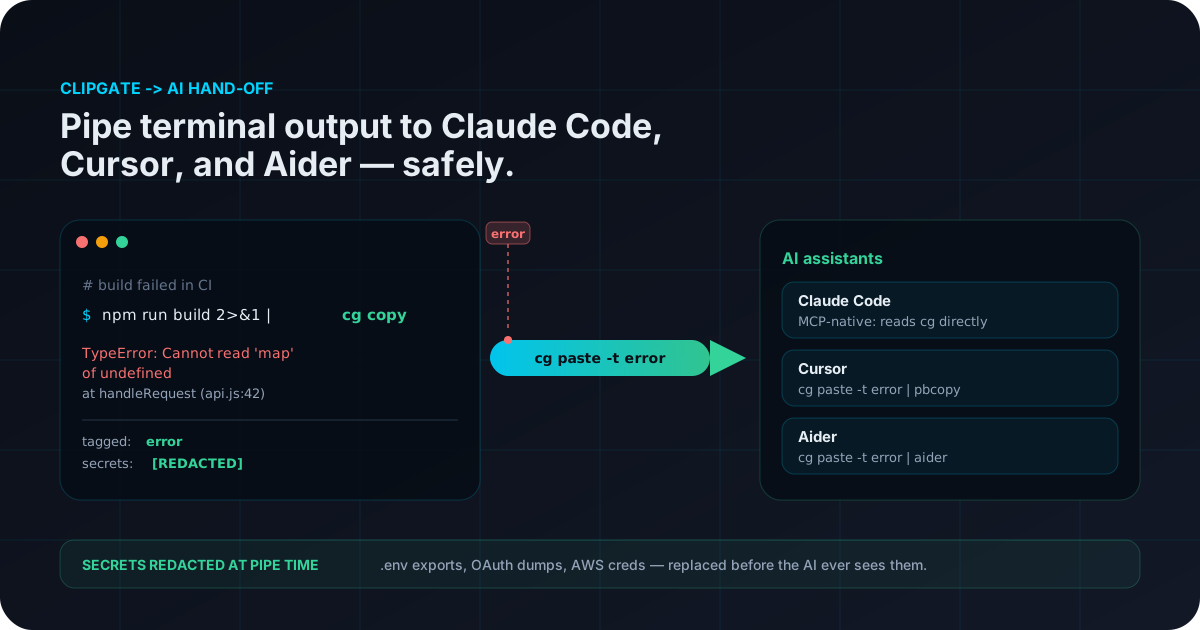
$ npm run dev 2>&1 | cg copy
The interesting part is what happens during that pipe. ClipGate does not just store the bytes. It runs a shape classifier over them and tags the value with a category — error, command, path, url, json, diff, or secret. The presence of TypeError, panic:, a stack frame, or a non-zero exit prefix is enough to file the value as an error. From that moment on you can ask for it by type instead of by recency.
$ cg paste -t error
TypeError: Cannot read 'map' of undefined
at handleRequest (/api/routes/users.js:42:18)
at async Layer.handle (/node_modules/express/...)
This is the small but load-bearing detail that makes the rest of the workflow work. You do not have to remember whether the error was the most recent thing you copied or the third most recent. You ask for the last error. You ask for the last command. You ask for the last path. The retrieval surface is shaped like the question, and the question is almost always shaped by category.
Once that buffer exists, the three AI hand-offs below are all variations on the same idea: get the right slice of the buffer into the right input surface for whichever assistant you are using.
Hand-off pattern: Claude Code (MCP-native)
Of the three tools in this post, Claude Code has the cleanest integration because it speaks the Model Context Protocol natively. ClipGate ships an MCP server that exposes the typed buffer as a set of read tools. Wire the two together once, and Claude Code can fetch the last error, the last command, or any other typed entry without you ever copying anything by hand.
The configuration lives in your Claude Code MCP file, typically at ~/.config/claude-code/mcp.json or the per-project equivalent.
{
"mcpServers": {
"clipgate": {
"command": "cg",
"args": ["mcp", "serve"],
"env": {}
}
}
}
After a restart, Claude Code lists the ClipGate tools alongside its file and shell tools. Now the workflow collapses to a single sentence. You produce the failure in the terminal, you switch to the Claude Code chat, and you type something close to "look at the last error and propose a fix." Claude Code calls the MCP tool, reads the typed entry, and replies with a patch — without you touching the mouse, switching tabs, or pasting anything.
$ cargo test 2>&1 | cg copy
$ # in Claude Code: "fix the most recent test error"
# Claude Code calls clipgate.last(category="error") and replies with a diff
The reason this matters more than it sounds is that the Claude Code session no longer needs you to keep its context current. The buffer is the source of truth, the model reads from the buffer, and a long debugging session does not turn into a long sequence of paste operations. The handoff is implicit, not gestural.
If you only set up one of the three patterns in this post, set up this one. MCP is the closest any of these assistants come to "the AI just knows what's in your terminal," and it is genuinely just a config file.
Hand-off pattern: Cursor (pipe-friendly)
As of 2026, Cursor does not consume MCP servers. The product is excellent for in-editor edits, but it expects context to arrive through the editor itself — selected code, the chat composer, or the inline Cmd-L surface. The cleanest pattern is therefore to bridge the typed buffer into Cursor's existing input channels, and the bridge that always works is the system clipboard.
# macOS
$ cg paste -t error | pbcopy
# Linux (Wayland)
$ cg paste -t error | wl-copy
# Linux (X11)
$ cg paste -t error | xclip -selection clipboard
Now the most recent error sits in the system clipboard, ready to be pasted into Cursor's composer. The win over a manual copy is precision: the buffer holds exactly what the failing process emitted, including the lines above and below the obvious traceback that you would have under-selected with the mouse. The classifier already knows where the error block ends, so you do not have to.
If you want the in-editor Cmd-L flow instead, the move is to drop the captured value into a scratch buffer, highlight it, and ask Cursor's inline chat to fix it. That sounds more involved than it is — most editors have a one-line "open scratch" command, and once the value is on screen the rest is muscle memory.
$ cg paste -t error > /tmp/last-error.log
$ code /tmp/last-error.log
# in Cursor: select all, Cmd+L, "diagnose this and propose a fix"
The point is not to avoid the editor. Cursor's strength is exactly the bidirectional dialogue around a visible buffer. The point is to skip the part where you reconstruct what the terminal already knew. The terminal still produces the failure. ClipGate still classifies it. Cursor still drives the edit. Each tool does the part it is good at, and no human transcribes between them.
Hand-off pattern: Aider (terminal-native)
The cleanest pipe of the three belongs to Aider, because Aider is itself a terminal program. The hand-off is a single shell pipeline with no clipboard, no editor, and no window switch.
$ cg paste -t error | aider --message "diagnose and fix"
Aider takes the message, attaches the file context it already knows about, and replies with a diff in the same terminal you produced the error in. If you accept, the patch lands. If you do not, the conversation continues. The whole loop happens inside one window, with no UI surface to fight.
Where this pattern really earns its keep is when you pair it with cg watch and Aider's /run command. Run cg watch in a side terminal so every clipboard event flows through the classifier. Then, inside an Aider session, type /run npm test. Aider executes the command, and whatever lands in the clipboard during that run — the failing assertion, the path of the offending file, the JSON body of a 500 — is already classified by the time you ask Aider to fix it.
$ cg watch &
$ aider
> /run npm test
# tests fail, captured automatically
> the last error came from the auth flow — fix it
That is the rare workflow that actually feels faster than a single human keypress, because the assistant pulls the most recent failure on its own and you spend zero motion describing what just happened. The terminal is the substrate. ClipGate is the index. Aider is the agent. The pipe is implicit.
The differentiator: automatic secret redaction
Here is the part most of the "send your terminal to an AI" tutorials skip. Production logs are full of secrets. You did not put them there on purpose. They arrived because some library helpfully echoed an environment variable on startup, or because an OAuth flow dumped the bearer token into a debug print, or because a misconfigured AWS SDK printed your access key and secret to stderr before crashing. The output you are about to pipe into a third-party model contains things you do not want a third party to see.
Most of the time, you do not know it does. That is why redaction has to happen automatically, before the value leaves the local machine. ClipGate's classifier runs a secret detector at capture time, and any substring matching a known token shape gets quarantined. ghp_-prefixed GitHub tokens, sk--prefixed OpenAI keys, AKIA-prefixed AWS access keys, JWTs, high-entropy strings of plausible token length — all of it gets flagged.
Quarantined values do not appear in the default cg paste output. They live in a separate, in-memory-only store with a five-minute TTL — never persisted to disk, never replicated to any sync target, never returned to a caller that does not pass --secret explicitly. When a secret appears inline inside a larger payload, it is replaced with a [REDACTED:secret] placeholder before the surrounding context is handed back.
$ aws s3 ls 2>&1 | cg copy
$ cg paste -t error
Unable to locate credentials. Configure with:
AWS_ACCESS_KEY_ID=[REDACTED:secret]
AWS_SECRET_ACCESS_KEY=[REDACTED:secret]
ClientError: NoCredentialsError
The practical effect is that you can pipe a real failure into a real model without auditing every line first. The classifier does the audit at capture time, and whatever you forward downstream looks like the original error minus the parts that should never have been shareable.
Automatic redaction at the pipe boundary is what turns "I would love to send my logs to an AI" into "I send my logs to an AI." The policy question gets answered at the tool layer instead of the human layer.
For the deeper threat-model walkthrough — what counts as a secret, what the TTL covers, what happens on a process crash — the 2026 guide to AI assistants and clipboard secrets covers the full taxonomy.
The cheat sheet
Five lines cover roughly ninety percent of the real-world hand-offs. Pin them somewhere visible.
| Action |
Command |
| Capture a command's output, classified at pipe time |
npm test 2>&1 | cg copy |
| Retrieve the last entry of a given type |
cg paste -t error |
| Search the typed buffer by substring |
cg search "connection refused" |
| Pack the last N entries of one or more types into a single prompt-shaped blob |
cg pack -t error -t command -n 5 |
| Safety knob — keep a sensitive capture in memory only, never on disk |
cg copy --policy memory_only |
The full command surface lives in the ClipGate docs, including the flags for label-based retrieval, ID lookup, and direct piping back to the system clipboard. If you are coming from a browser-heavy workflow rather than a terminal-heavy one, the ClipGate browser companion sends captures into the same buffer, so the JSON you grabbed from a cloud console is reachable from the same cg paste a second later.
The shortest version of the pitch: your terminal already produces the bytes the AI wants to see. The job is to remove every step between the two. Capture once. Classify at the boundary. Redact at the pipe. Hand off through the idiom each assistant prefers. Stop being the data bus between your own tools.
Frequently asked questions
How do I send a terminal error to Claude Code without copy-pasting?
Capture the failing command once with a pipe — npm run dev 2>&1 | cg copy — then ask Claude Code for the last error. If Claude Code is connected to ClipGate's MCP server, it reads the most recent error directly from the local store. Otherwise, run cg paste -t error and paste the result into the chat.
Does Cursor support piping terminal output directly?
Cursor does not consume MCP servers as of 2026, so the cleanest path is the system clipboard. Run cg paste -t error | pbcopy on macOS or cg paste -t error | xclip -selection clipboard on Linux, then paste into Cursor's composer or send it through Cmd+L. The captured value is exactly what failed in the terminal.
What is the safest way to give an AI my full build logs?
Capture the logs with cg copy, let the classifier scan for secrets, and pipe cg paste to the assistant. Anything matching a known secret pattern is replaced with [REDACTED:secret] before the value leaves the local store.
Can I use this with Aider?
Yes. Aider is a terminal program, so the pipe is direct: cg paste -t error | aider --message "diagnose and fix". Pair Aider's /run command with cg watch to triage failures as they happen.
What if the error contains an API key or token?
The classifier quarantines anything matching a known secret prefix or high-entropy token shape. Quarantined values stay in memory only, with a five-minute TTL, and are substituted with [REDACTED:secret] inside larger payloads. You have to opt in with --secret to retrieve a quarantined value.
Will any of this work over SSH or in a tmux session?
Yes. Capture happens on whichever machine runs cg copy. To land a remote failure in your laptop's buffer, pipe it through SSH on the way home — for example, ssh prod 'journalctl -u api -n 200' | cg copy — and the classifier runs locally on the way in.
Install ClipGate and start piping
The hand-off patterns above all assume the cg binary is on your PATH. Pick whichever installer fits your environment and the rest of this post is one terminal away.
Site installer
Fastest path for macOS and Linux if you want the official binary with minimal setup.
curl -fsSL https://clipgate.github.io/install.sh | sh
PyPI
Useful when Python is already part of your environment, including Windows workflows.
Homebrew
Best fit for terminal-native installs if Homebrew already manages the rest of your toolchain.
brew install clipgate/tap/cg
Stop being the data bus between your terminal and your AI.
ClipGate captures, classifies, and redacts at the pipe boundary so Claude Code, Cursor, and Aider get the right slice of your terminal — without the copy-paste tax and without leaking the secrets that hide in your logs.
Read next
The workflow-first argument for why a typed clipboard beats scrollback hunts and shell-history grep.
Published
~10 min read
The threat model behind pipe-time redaction — what counts as a secret, what the TTL covers, and how to avoid leaking credentials into a model.
Published
~9 min read