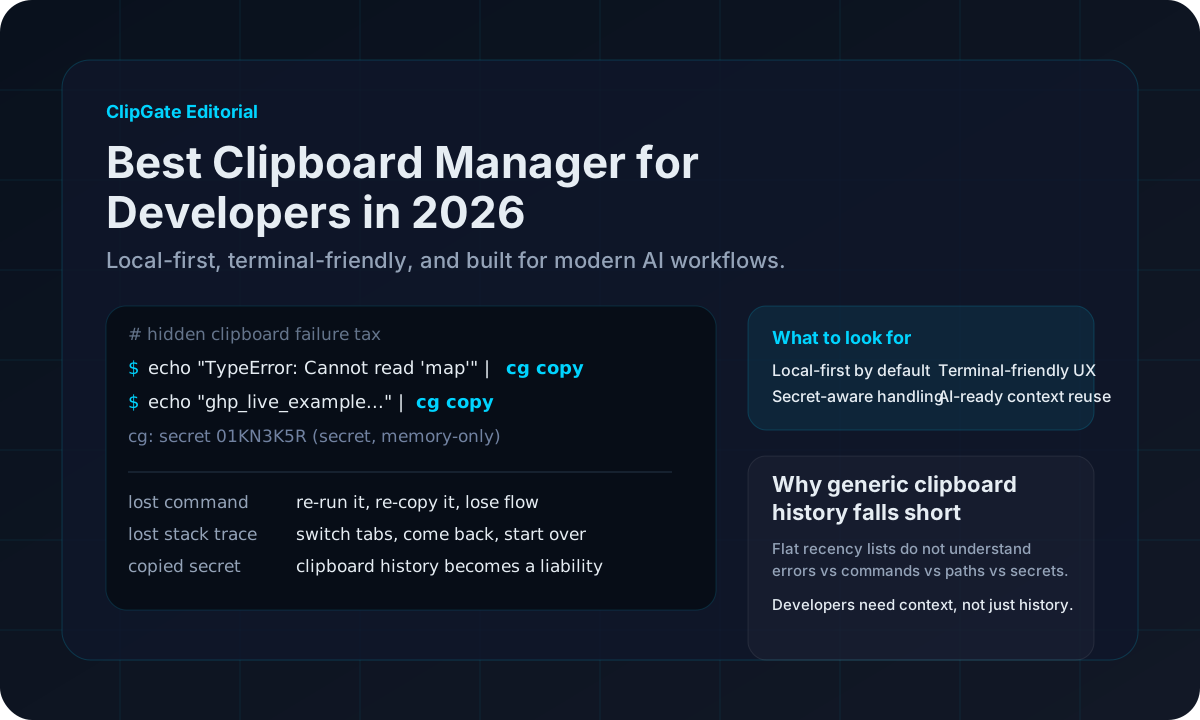
Why the clipboard becomes a developer problem
For developers, the clipboard is not just a convenience. It is a temporary working layer for commands, paths, errors, JSON fragments, URLs, config values, and the small pieces of context that keep momentum going.
The problem is that this working layer is fragile by default. One extra copy wipes out the last useful item. A path gets replaced by an error. The error gets replaced by a token. The token gets replaced by a URL. Then the reconstruction begins: search terminal history, reopen logs, find the same file again, or retry the same failing command just to recapture output you already had once.
Lost commands
Especially painful when the original command had a one-off flag, environment variable, or destructive dry-run combination.
Lost paths
It is rarely the path itself. It is the interruption of having to find it again while mentally switching tasks.
Lost errors
The right error message is often the fastest route to a fix, but only if it is still available when you need it.
Leaky secrets
Clipboard history becomes risky when it stores everything forever, including tokens and credentials copied in a hurry.
The best clipboard manager for developers is not the one with the longest feature list. It is the one that reduces recovery time, protects sensitive data, and lets you get the right item back without thinking too hard.
What to look for in 2026
A developer-focused clipboard manager should be judged by practical criteria. If it cannot improve recovery of commands, errors, and paths while handling secrets carefully, it probably is not built for engineering workflows first.
| Criteria |
Why it matters |
Good sign |
| Local-first behavior |
Your clipboard should still work as a local tool, without a required account or cloud sync to do the basics. |
Core capture, search, retrieval, and storage all work on-device. |
| Secret-aware handling |
Tokens, keys, and passwords should not be treated like ordinary notes or chat text. |
Masking, memory-only options, careful storage policy, or explicit protection. |
| Terminal fit |
Developers move faster when clipboard actions feel natural from shell and editor workflows. |
CLI support, keyboard-first retrieval, pipes, and scriptable commands. |
| Semantic retrieval |
Retrieval by type is often faster than scrolling through a flat timeline. |
Commands, errors, paths, JSON, URLs, and other categories are distinguishable. |
| AI-ready packaging |
Developers increasingly need to bundle the right context, not the entire clipboard, for assistants. |
Structured packaging and selective retrieval instead of blind history dumps. |
Local-first and secret-aware should be non-negotiable
Local-first is not just a nice-to-have. It is a trust requirement. When developers copy errors, deployment commands, internal URLs, credentials, or environment values, the default expectation should be that the tool remains useful without shipping that context somewhere else first.
Secret-aware behavior matters just as much. A good clipboard manager should be able to recognize when the clipboard contains a likely token, key, password, or secret-shaped string. That does not mean blocking every workflow. It means giving sensitive items better defaults, such as redaction, memory-only handling, or shorter retention.
Local-first means the core job stays on-device
Capture, classify, store, and retrieve locally by default. If output later gets piped to another tool, that should happen because the user chose it.
Secret-aware means a safer default posture
The tool should help reduce accidental retention and shoulder-surfing, not create a permanent archive of every credential that passes through the clipboard.
Terminal-friendly and AI-ready now matter more than ever
Developers increasingly jump between a shell, an editor, browser tabs, issue trackers, and an assistant. The clipboard is one of the few surfaces that touches all of those contexts. That makes a terminal-friendly workflow especially valuable.
Terminal-friendly
The best tools reduce friction at the shell. You should be able to capture, search, inspect, and retrieve without reaching for a mouse-heavy desktop UI every time.
echo "TypeError: x is undefined" | cg copy
cg list
cg paste -t error
AI-ready
AI-ready should not mean sending the whole clipboard to a model. It should mean packaging the right commands, errors, and notes together when you choose to ask for help.
cg pack -t error -n 5 | claude "fix these issues"
That distinction matters. A good tool helps you decide what context to forward, and helps you avoid forwarding the wrong context by accident.
Where ClipGate fits
ClipGate is built around the idea that developer clipboard history should be typed, local-first, and fast to recover. Instead of treating copied content as one flat stream, it tries to recognize what each item is and make retrieval semantic rather than purely chronological.
Typed retrieval
Errors, commands, paths, JSON, URLs, and other technical content can be retrieved by meaning, not just by order.
Local-first runtime
The core CLI is designed to stay useful without requiring a cloud account for everyday developer workflows.
Secret-aware posture
Sensitive content is treated differently from ordinary text, so the tool can help reduce long-lived exposure when secrets pass through the clipboard.
Terminal-native packaging
When the right next step is an assistant, ticket, or handoff, packaging the right context becomes part of the flow instead of a manual cleanup task.
Measured conclusion: the best clipboard manager for developers in 2026 is the one that quietly saves time, respects sensitive data, and fits the way engineers already work. Local-first, terminal-friendly, and secret-aware are the baseline.
Try the model, not just the marketing
The fastest way to evaluate any developer clipboard tool is to try it in a real session: copy an error, recover a path, search an older command, and see whether the tool feels like a natural extension of your workflow or another place to babysit state.
If you want to test ClipGate in that spirit, start with the official installer, then use the docs and release notes as the second step.
Site installer
Fastest path for macOS and Linux if you want the official binary with minimal setup.
curl -fsSL https://clipgate.github.io/install.sh | sh
PyPI
Useful when Python is already part of your environment, including Windows workflows.
Homebrew
Best fit for terminal-native installs if Homebrew already manages the rest of your toolchain.
brew install clipgate/tap/cg
Try ClipGate with a real workflow in mind.
Install it, copy a few real items from your day, and see how quickly you can recover errors, commands, and paths when context starts moving fast.
Read next
A workflow-first post about reducing context loss in shell-heavy sessions and why the wrong clipboard habit quietly burns time every day.
Coming soon
~7 min read
A calm, step-by-step recovery playbook for the moment a secret lands in Slack, GitHub, a screen share, or a doc — and how to stop it from happening again.
Published
~11 min read