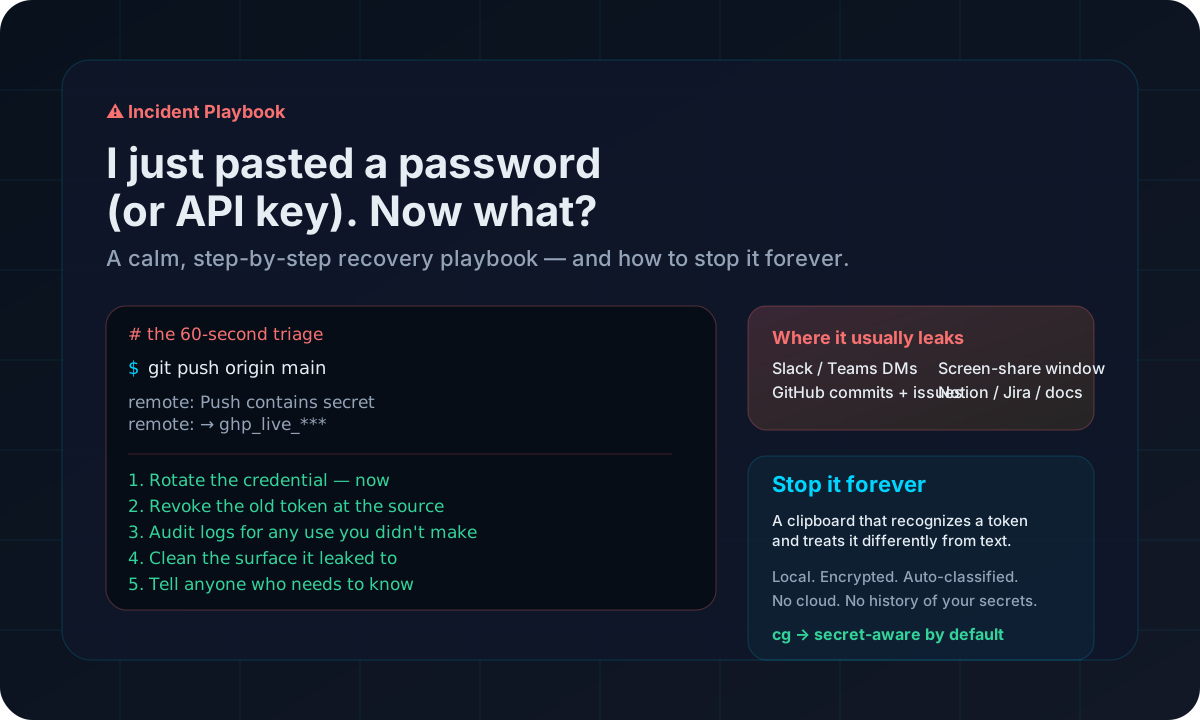
The 60-second triage: what to do right now
If you just pasted a password, API key, token, recovery code, or anything that grants access to something you care about — read this section first. The rest of the article can wait.
The first rule of secret leaks: assume it is exposed. Do not negotiate with yourself about whether it really counts. Treat the credential as compromised, and rotate it. Everything after that is just damage control on something you no longer rely on.
Stop typing in that window
Whatever you were doing — sending a message, hitting "Save", pushing a commit — pause it. You do not want to make the mistake worse by also sending the next message that references it.
Open the service the credential belongs to in another tab
GitHub, AWS, your cloud provider, your password manager, your SaaS tool — go to the page where you can revoke or rotate that specific credential.
Rotate or revoke the credential
Generate a new one and disable the old one. This is the single highest-leverage action you can take. Everything else in this article is optional once the old value is dead.
Then, and only then, deal with the surface it leaked to
Delete the message, edit the doc, force-push the commit, end the screen share. These actions are useful, but they are not protection. Rotation is protection.
Why this happens to almost everyone
Pasting a secret into the wrong window is not a sign of carelessness. It is a structural problem with how clipboards are designed. The clipboard is a single, global, shared variable that the entire operating system reads from. Every app on your machine — and on a shared screen, every viewer of that screen — sees whatever you copied last.
Now layer on the way modern engineering work happens. You are switching between a terminal, a browser, an editor, a chat tool, an issue tracker, an AI assistant, and three different cloud consoles. You copy a token to test something. Two minutes later, a teammate pings you with a question. You alt-tab, hit Cmd-V or Ctrl-V out of muscle memory, and a credential lands somewhere it should never have been.
Tab confusion
The window you thought was your local terminal turns out to be a shared notebook. Same shortcut, different audience.
Stale clipboard
You think you copied the path you just yanked. You actually still have the token from ninety seconds ago.
Reflex pasting
Cmd-V is muscle memory. By the time your brain catches up, the message is already mid-send.
Screen-share blindness
You forget the call is still running, paste a key into your terminal, and seven people see it on their screens.
The lesson is not "be more careful." The lesson is that any system that quietly stores high-value secrets next to grocery lists is going to leak eventually. The fix has to live below the human, not on top of them.
The 8-step damage-control playbook
Use this list when you have more than sixty seconds — say, after you have already rotated the credential and you want to make sure nothing else is hanging open. It is ordered roughly from highest leverage to lowest, so do not feel obligated to finish it.
Confirm the rotation actually worked
It is surprisingly easy to think you rotated a key and to actually have rotated a different one. Test the new credential in a real call. Confirm that the old one returns an authentication error.
Revoke any related sessions and tokens
Many services let you sign out of all devices, rotate all session tokens, or invalidate every refresh token at once. If you suspect the credential was used to get a session, revoke that session too.
Check the audit log for the service
Look for activity from IPs you do not recognize, regions you do not work in, or hours you were not online. Most providers expose this under a "security" or "audit" page. Note the latest legitimate use, then anything after it deserves attention.
Clean the surface the secret landed on
Delete the chat message, edit the doc, remove the comment. This will not retract the value, but it lowers the chance of a future viewer noticing it.
If it is in version control, treat it as permanently public
Force-push, history rewriting, repo deletion — none of these unpublish a value that has already been pushed to a remote. Bots index public commits in seconds. The only safe assumption is that it is in someone's database now.
Tell the people who need to know
If the credential belonged to a shared service, your team needs to know it was rotated, and ideally why. A short, calm note is much better than a quiet rotation that breaks somebody else's deploy at midnight.
Capture what happened in two sentences
Not for a postmortem ritual — for your own future memory. "I copied the prod token to debug a 500, alt-tabbed into Slack, pasted into the wrong DM." Two sentences is enough. You will thank yourself the next time you tighten a workflow.
Fix the upstream cause, not just this incident
If your clipboard happily stores secrets next to memes, the next leak is already on the calendar. The structural fix is treating secrets as a different category of data from the moment they enter the clipboard. We will get to that below.
Scenario fixes: Slack, GitHub, screen share, Notion
Different surfaces have different exposure profiles. Here is a quick map of the most common ones, what makes each risky, and what to actually do.
| Where it landed |
Why it is risky |
What to do |
| Slack / Teams DM or channel |
Stored server-side. Indexed for search. Mirrored to mobile clients. Possibly retained by workspace policy and exported in compliance archives. |
Rotate the credential first. Then delete the message. If it was in a channel, an admin can purge it from search and exports — but the credential is already considered exposed. |
| GitHub commit, issue, or PR comment |
Public commits are indexed by scrapers within seconds. Even private repos get exposed by misconfigured forks, integrations, or accidental visibility flips. |
Rotate immediately — this is the riskiest surface on the list. Then delete the comment or rewrite history if it helps tidiness, but do not rely on it as protection. |
| Screen share / livestream / pair session |
Anyone watching saw it. Any recording captured it. Any thumbnail preview retained it. Out-of-band exposure is the hardest to bound. |
Rotate first. Tell the room what just happened — they will respect the speed more than the silence. If a recording exists, ask for it to be edited or deleted. |
| Notion / Confluence / Google Docs |
Lives in a synced cloud doc with version history. Collaborators may have notifications, mobile drafts, or local copies of the page. |
Rotate, then remove the value, then purge the page version history if your tool supports it. Tell collaborators with edit access in case they have offline copies. |
| Public Jira or GitHub issue |
Often indexed by search engines. Often forwarded into Slack via integrations. Often quoted into other tickets. |
Rotate. Then edit or delete. Search your own integrations for forwarded copies in chat, email, and notification archives. |
| AI assistant chat |
Some assistants log conversations for training, debugging, or evaluation. The raw text may live in vendor systems for weeks. |
Rotate. Stop the conversation. If your provider exposes a delete-conversation control, use it. Treat the value as compromised regardless. |
Myths that make leaks worse
A surprising amount of bad advice circulates here. These are the patterns that do not protect you, even though they feel like they should.
"I deleted the message, so it is gone."
Deletion in a chat tool removes the visible message. It does not retroactively erase server logs, search indexes, mobile caches, retention archives, push notification previews, or anyone who had the window open at the time.
"I force-pushed, so the commit is gone."
Force-pushing rewrites the branch tip. It does not unlist the dangling commit from caches, integrations, mirrored forks, or scraper databases that already pulled it.
"It was a private repo, so it is fine."
Private is not the same as inaccessible. Repos get accidentally flipped public, integrations expand access in ways nobody expected, and former employees still have local clones.
"I will rotate it later, after I confirm nothing bad happened."
Rotation is the cheap action. Investigation is the expensive one. Do them in that order, not the reverse. The cost of an unnecessary rotation is a one-line config change. The cost of a delayed rotation can be six figures.
"It was just for testing, so it does not matter."
Test credentials on real systems are real credentials. If a "test" key can read or write production data, it is a production key with worse hygiene.
How to actually stop it happening forever
Tightening your habits helps, but habits break under load. The reason this keeps happening is structural, not personal. The fix has to be structural too.
The single most impactful change is to use a clipboard tool that understands what it is holding. When the value being copied is shaped like a token, key, password, JWT, or cloud credential, it should be treated differently from the moment it enters the clipboard — not after the leak.
Auto-classify on capture
The clipboard should detect that "ghp_xyz...", "sk-ant-...", an AWS access key, a JWT, or a high-entropy alphanumeric blob is not the same as a sentence. Classification has to happen the second the value lands, not when you go to paste it.
Encrypt the vault, not just the history
If your clipboard manager keeps a flat plaintext database of everything you ever copied, the secret problem is now a file problem. The local store should be encrypted at rest so a stolen disk image is not a credential dump.
Keep secrets out of the searchable history
Generic clipboard history puts every value in the same scrollback. Secret-aware history should hide, mask, or quarantine secret items so they are not the next thing you accidentally arrow-key into.
Stay 100% local
Your clipboard should not be syncing your secrets to a vendor cloud, even helpfully, even with end-to-end encryption marketing. The simplest threat model is the one where the data never leaves your machine.
Make recovery the default
Most people only notice the clipboard when it betrays them. A good clipboard should make recovery — getting back the right item from five minutes ago — feel obvious, so you stop relying on the volatile, single-slot, global variable.
What "secret-aware clipboard" actually means
"Secret-aware" sounds like marketing language until you see the workflow. Concretely, a secret-aware clipboard does three things that an ordinary clipboard manager does not.
1. It recognizes the value
Instead of treating every copied string as plain text, it inspects the shape of the content and asks: does this look like a token, key, password, or otherwise sensitive blob?
$ echo "ghp_live_example_xxxxxxxxxxxxxx" | cg copy
cg: classified as secret → secret-aware vault
cg: not added to plain history
2. It keeps the value out of reach
Secrets do not get logged into the same flat scrollback as commands and notes. They live in a separate, encrypted area that does not show up when you absent-mindedly scroll your clipboard history in front of someone.
$ cg list
1 command "kubectl rollout restart deploy api"
2 error "TypeError: Cannot read 'map' of undef"
3 path "/var/log/api/2026-04-07.log"
(1 secret hidden — use `cg vault` to view)
3. It refuses to make the same mistake twice
The next time you alt-tab into the wrong window and hit paste, the secret is not the freshest item in the clipboard. It was quarantined the moment it was copied. The reflex paste pulls something safe instead.
$ cg paste
# pastes the most recent NON-SECRET item
# the token from 90 seconds ago is in the vault, not in the buffer
4. It stays local and encrypted
The vault is on your machine. It is encrypted at rest. Nothing is shipped to a server, "just for sync." If your laptop is offline, your clipboard still works exactly the same.
$ cg status
storage: local vault (encrypted at rest)
network: none
telemetry: off
account: not required
This is the structural fix. Once secrets are recognized at the clipboard layer, the entire category of "I accidentally pasted a token" stops being a reflex problem and starts being a system property.
Where ClipGate fits
ClipGate is built around exactly the workflow above. It is a terminal-native clipboard vault: every copy is automatically classified, secrets land in a local encrypted vault instead of a scrollable plaintext history, and the whole thing runs on your machine without an account, without telemetry, and without a cloud round-trip.
Auto-classification on every copy
Tokens, API keys, JWTs, passwords, AWS credentials, and high-entropy secret-shaped strings are recognized the moment they enter the clipboard.
Encrypted local vault
The store is encrypted at rest. There is no plain-text database of everything you have ever copied sitting in your home directory.
Secrets stay out of the default scrollback
Secret items are kept in a separate vault, not in the main history. Reflex pastes do not surface them, and shoulder-surfing the history list does not expose them.
100% local — no cloud, no account, no telemetry
Nothing is shipped anywhere. The clipboard works the same offline as online, because there is no "online" mode.
Terminal-native, with a browser companion
Use it from the shell with one-character commands, or pair it with the optional browser extension for the same secret-aware capture inside the browser.
The shortest version of the pitch: your clipboard should not be the place your worst leak comes from. ClipGate is what that idea looks like as a tool you actually use every day.
Frequently asked questions
I just pasted my password into the wrong window. How bad is it?
It depends on where it landed. A password pasted into a private text field on your own machine is usually low risk. A password pasted into a chat tool, a public document, a shared screen, or a version control commit should be treated as compromised. The safest move is to rotate it immediately, then audit where it might have been stored or logged.
I committed an API key to GitHub. Is deleting the commit enough?
No. Deleting a commit, force-pushing, or even deleting the entire repository does not retract a key once it has been pushed to a remote. Bots and scrapers index public commits within seconds. The only safe response is to rotate the key at the source and assume the old value is permanently exposed.
I pasted a token into a Slack DM. Is it safe because it is private?
A direct message is private from other users, but it still lives in Slack's storage, in mobile clients, in notification previews, in search indexes, and possibly in retention archives or workspace exports. Treat any secret pasted into a chat tool as logged, then rotate.
How do I know if my pasted secret has actually been used?
Check the audit log for the service the credential belongs to. Most cloud providers, GitHub, npm, AWS, and SaaS tools expose access logs that include IP, time, and action. Look for activity you cannot account for, especially from unfamiliar regions or at unusual hours.
How can I stop accidentally pasting secrets in the first place?
Use a clipboard tool that recognizes when the clipboard contains a secret-shaped value — a token, key, or password — and treats it differently from ordinary text. ClipGate is built around this idea: secrets are auto-classified, kept in a local encrypted vault, and never logged into a flat history that anyone can scroll through later.
Does a password manager solve this?
Partially. Password managers help you avoid typing secrets in the first place, which is great. But once a value is on the clipboard — to log into a CLI, to test an API, to debug a deploy — it leaves the password manager's protection and lives in the global system clipboard like everything else. That gap is what a secret-aware clipboard closes.
Install ClipGate and close the gap
The best moment to harden your clipboard is right after a near-miss. The next best moment is now. Pick whichever installer fits your environment.
Site installer
Fastest path for macOS and Linux if you want the official binary with minimal setup.
curl -fsSL https://clipgate.github.io/install.sh | sh
PyPI
Useful when Python is already part of your environment, including Windows workflows.
Homebrew
Best fit for terminal-native installs if Homebrew already manages the rest of your toolchain.
brew install clipgate/tap/cg
Stop the next leak before it happens.
ClipGate turns every copy into a classified, locally encrypted item. Secrets do not land in a plain scrollback, and reflex pastes stop being the riskiest action of your day.
Read next
How to evaluate local-first, terminal-friendly, secret-aware clipboard tools for engineering workflows.
Published
~8 min read
A workflow-first post about reducing context loss in shell-heavy sessions and why the wrong clipboard habit quietly burns time every day.
Coming soon
~7 min read